Christina Phillips shows off an option for Updating Records with Excel. It's a hack...and I use it a lot.
By a hack I mean that if you show this off to SQL professionals they will laugh at you...and it won't matter because your work will be done and you'll be going home.
 You, Me and Dynamics GP
The premier information site for Microsoft Dynamics GP

Showing posts with label Excel. Show all posts
Showing posts with label Excel. Show all posts
20 March 2013
05 March 2013
Jet Essentials: Advanced Reporting for Group Collaboration | MSDynamicsWorld.com
Jet Reports is launching Jet Essentials at Convergence. Get the details at Jet Essentials: Advanced Reporting for Group Collaboration


28 February 2013
Building Dashboards with Microsoft Dynamics GP 2013 and Excel 2013 | Packt Publishing
My new book, Building Dashboards with Microsoft Dynamics GP 2013 and Excel 2013 has been announced! It's now available for preorder at http://www.packtpub.com/building-dashboards-with-microsoft-dynamics-gp-2013-and-excel-2013/book
If you want to be notified when it's out, please sign up here. If you're interested in this topic, be sure to attend the dashboard session that Jared Hall and I are doing at Convergence 2013. Hit this link and search for Mark Polino under the speaker name.

If you want to be notified when it's out, please sign up here. If you're interested in this topic, be sure to attend the dashboard session that Jared Hall and I are doing at Convergence 2013. Hit this link and search for Mark Polino under the speaker name.

11 February 2013
Excel Blog - Open Excel workbooks in separate windows and view them side by side
A cool new Excel 2013 feature is the ability to Open Excel workbooks in separate windows and view them side by side
Excel Advanced Reporting for Microsoft Dynamics GP: Jet Essentials
Excel Advanced Reporting for Microsoft Dynamics GP: Jet Essentials. Jet Reports is releasing a new, free product designed to help reporting from Dynamics GP in Excel. I got a chance to preview it and it's pretty nice.
Jet Essentials releases at Convergence 2013 so you'll have to wait until then.
Jet Essentials releases at Convergence 2013 so you'll have to wait until then.
04 February 2013
From Data to Insight & Impact: Building a Manufacturing Summary with Power View
Here is a nice video on how to use Power View in Excel 2013. I cover it in my upcoming Building Dashboards with Dynamics GP 2013 and Excel 2013 book too.
Weekly Dynamic: Excel 2013 Quick Analysis
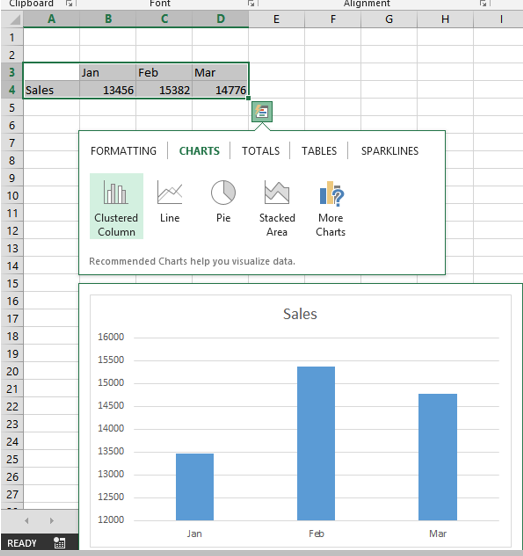
Excel 2013 offers a new, easy way to analyze data. If you have a set of information, like sales data for example, highlight the data, right click and pick Quick Analysis.
A bar pops up with all of the major analytical and formatting components including Conditional Formatting, Charts, Totals, Tables and Sparklines. Hovering over the various options let you see the result without yet committing to say, building a chart. Clicking an item applies the item to the data.

A bar pops up with all of the major analytical and formatting components including Conditional Formatting, Charts, Totals, Tables and Sparklines. Hovering over the various options let you see the result without yet committing to say, building a chart. Clicking an item applies the item to the data.
29 January 2013
Mohammad R. Daoud: Dynamics GP Excel Paste V 4.0
Mohammed Daoud has released Dynamics GP Excel Paste V 4.0. This let's you copy and paste from Excel to Dynamics GP and it free for importing journal entries.
17 December 2012
Mohammad R. Daoud: Dynamics GP Excel Paste has been ranked in DynamicsWorld Microsoft Dynamics Top 50 Add-Ons 2013
Dynamics GP Excel Paste has been ranked in DynamicsWorld Microsoft Dynamics Top 50 Add-Ons 2013. Do I have to say more? I going to take just a little credit for showcasing it in so many presentations and on the blog this year.
10 December 2012
Weekly Dynamic: Excel Financial Statement Formatting Updated
I realized that last week's post probably wasn't clear enough so I'm adding more detail this week.
 Above we have a raw pivot table financial statement. Assets positive, Liabilities/Equity negative. The Balance Sheet Balances but it's ugly. To fix this I:
 We're halfway there. Next I:

The key is that we are manipulating how the items look, not how the calculations are done.

- Selected the Total Liabilities and Equity line
- Right Click | Value Field Settings | Number Format
- Pick my custom format _(* (#,##0);_(* #,##0_);_(* "-"??_);_(@_) Notice that the parentheses are switched. Positive numbers have parentheses.

- Highlighed the Asset amounts
- I clicked the Comma icon to format the assets as Accounting, no currency symbol.
- Clicked the Decrease Decimal icon twice to remove the pennies.

The key is that we are manipulating how the items look, not how the calculations are done.
03 December 2012
Weekly Dynamic: Excel Financial Statement Formatting
Despite tools to create financial statements for Dynamics GP like FRx, Management Reporter, deFacto and many others, some folks want to just use Excel reports to create financial statements. One of the challenges with this approach is that if you show debit balances as universally positive and credit balances as universally negative it looks really unprofessional. The math works but having revenue as a negative and expense as a positive usually freaks end users out.
Yes you can write a bunch of formulas to flip the signs, and redo the calcs but let me give you another option. Change the formatting. You can create a custom number format to switch the signs and only apply it to certain sections of the financial statements.
This format _(* (#,##0);_(* #,##0_);_(* "-"??_);_(@_) flips the sign and puts brackets around positive numbers. If you apply it to the Liabilities and Equity sections of the balance sheet, the numbers all change to positive but the underlying calculations don't change. The balance sheet still balances and all that has changed is the formatting.You can apply this formatting to the whole Income Statement and it comes out perfect.
The nice thing about this is that if you ever want to see the raw data from GP, just reset the formatting. You don't have to worry about making a mistake in formula to swap the signs on debits and credits.
Yes you can write a bunch of formulas to flip the signs, and redo the calcs but let me give you another option. Change the formatting. You can create a custom number format to switch the signs and only apply it to certain sections of the financial statements.
This format _(* (#,##0);_(* #,##0_);_(* "-"??_);_(@_) flips the sign and puts brackets around positive numbers. If you apply it to the Liabilities and Equity sections of the balance sheet, the numbers all change to positive but the underlying calculations don't change. The balance sheet still balances and all that has changed is the formatting.You can apply this formatting to the whole Income Statement and it comes out perfect.
The nice thing about this is that if you ever want to see the raw data from GP, just reset the formatting. You don't have to worry about making a mistake in formula to swap the signs on debits and credits.
27 November 2012
The Dynamics GP Blogster: Microsoft Dynamics GP Excel Dashboards
Mariano has nice coverage of some work that the GP team is doing around Microsoft Dynamics GP Excel Dashboards. They need some additional feedback from you too. I'll have my own write on this later, so for now, read Mariano's piece.
12 November 2012
Weekly Dynamic: Excel File Name
This tip comes courtesy of Zubin Gidwani and Traci Kellogg. If you want to put the name of your Excel worksheet tab automatically in the worksheet, you can use this formula:
=MID(CELL("filename",A1),FIND("]",CELL("filename",A1))+1,256)
You don't have to had anything or change anything in this formula, just type or copy it into a cell in Excel and it will fill in the name of that sheet's tab. I have no idea why this works but it does.
=MID(CELL("filename",A1),FIND("]",CELL("filename",A1))+1,256)
You don't have to had anything or change anything in this formula, just type or copy it into a cell in Excel and it will fill in the name of that sheet's tab. I have no idea why this works but it does.
05 November 2012
Weekly Dynamic: Flash Fill in Excel 2013
Microsoft Excel 2013 has a great new feature for manipulating data. It's called Flash Fill and here is how it works.
Let's say that I have last name, first name data like this:

I want First Name Last Name no comma. I can write a formula to split and change the data. I can use text to columns to split the data at the comma and bring it back together with a formula. Both options require some work.
With Flash Fill, I go to cell B1 and type Mark Polino to tell Excel what I want my data to look like. When I go to B2 and start to type Tony Romo Excel 2013 figures out the pattern and offers to make the change to the rest of the column.

Hit Enter and Excel 2013 finishes the pattern filling in the rest of column. This is really cool. I've found that occasionally it takes a couple of examples for really complex patters but common ones like name manipulation take very little work.
One caveat, Excel just makes the change, it doesn't create a formula so changing the source in Column A doesn't change the result after the Flash Fill has run.
Let's say that I have last name, first name data like this:
I want First Name Last Name no comma. I can write a formula to split and change the data. I can use text to columns to split the data at the comma and bring it back together with a formula. Both options require some work.
With Flash Fill, I go to cell B1 and type Mark Polino to tell Excel what I want my data to look like. When I go to B2 and start to type Tony Romo Excel 2013 figures out the pattern and offers to make the change to the rest of the column.
Hit Enter and Excel 2013 finishes the pattern filling in the rest of column. This is really cool. I've found that occasionally it takes a couple of examples for really complex patters but common ones like name manipulation take very little work.
One caveat, Excel just makes the change, it doesn't create a formula so changing the source in Column A doesn't change the result after the Flash Fill has run.
24 September 2012

06 September 2012

27 August 2012
About Dynamics, Development and Life: Importing/Exporting a Dynamics GP Transaction to Excel
Jivtesh reviews a couple of tools for Importing/Exporting a Dynamics GP Transaction to Excel
20 August 2012
Weekly Dynamic: Solve for Values - Bank Rec Example
Let's say for example that someone has done a poor job of entering deposits in Dynamics GP. Instead of selecting appropriate receipts and processing a deposit, they selected receipts that don't match the way the physical deposit was made. Now you have a mess trying to balance the bank account. Having to add multiple items to match a single number commonly comes up in Bank Rec. (I don't just mean GP bank rec either. I've seen cases where you have to combine items differently for bank recs by hand, with Quickbooks, Peachtree and Oracle financials. It's a bank rec thing.)
Excel can be a big help when trying to combine transactions to match so we're going to work through an example. One caveat, this method finds one match. It may not be the only combination that can match. You'll need the Solver add in that comes with Excel. Use File-Options-Add Ins to see if it's turned on and activate it if it's not.
1. Key amounts into Excel that look like this:

The Amounts column contains the amounts that you will ultimately use to try to find a match. Indicator is just the number 1 all the way down. We use it in the calculation.
2. In cell C1 type SumProduct(A2:A7,B2:B7). This will show the sum of A x B.
3. In cell D1 type 27.62. This is the amount we are trying to combine items to find. It's here just for reference.

Excel is going to add up the items in multiple combinations until it finds a combination that matches 27.62.
4. Click the Solver icon
5. In Set Objective enter or select $C$2
6. Check Value Of and enter the amount you want to find - 27.62
7. Set By Changing Value of Cells to $B$2:$B$7
8. Click Add. Set Cell Reference equal to $B$2:$B$7 and the middle field to bin.
9. Click OK. Click Solve.

Excel changes the 1's to 0's except for the lines that add up to $27.62.

To reset to search for another number, change column B back to all 1's, click the Solver icon and change the amount.
Many times when working through a bank statement there is a pattern. Items are off by a day for example. These are pretty easy to find by hand. Sometimes it's a lot harder an you a tool like this.
Excel can be a big help when trying to combine transactions to match so we're going to work through an example. One caveat, this method finds one match. It may not be the only combination that can match. You'll need the Solver add in that comes with Excel. Use File-Options-Add Ins to see if it's turned on and activate it if it's not.
1. Key amounts into Excel that look like this:
2. In cell C1 type SumProduct(A2:A7,B2:B7). This will show the sum of A x B.
3. In cell D1 type 27.62. This is the amount we are trying to combine items to find. It's here just for reference.
Excel is going to add up the items in multiple combinations until it finds a combination that matches 27.62.
4. Click the Solver icon
5. In Set Objective enter or select $C$2
6. Check Value Of and enter the amount you want to find - 27.62
7. Set By Changing Value of Cells to $B$2:$B$7
8. Click Add. Set Cell Reference equal to $B$2:$B$7 and the middle field to bin.
9. Click OK. Click Solve.

Excel changes the 1's to 0's except for the lines that add up to $27.62.
To reset to search for another number, change column B back to all 1's, click the Solver icon and change the amount.
Many times when working through a bank statement there is a pattern. Items are off by a day for example. These are pretty easy to find by hand. Sometimes it's a lot harder an you a tool like this.
20 June 2012
Mohammad R. Daoud: Excel Paste for “Any Screen” in Microsoft Dynamics GP
Mohammad Daoud has extended his previous pasting from Excel concept to inlcude Excel Paste for “Any Screen” in Microsoft Dynamics GP
This is worth a look. Check out the included videos.
This is worth a look. Check out the included videos.
18 June 2012
Mohammad R. Daoud: Dynamics GP Journal Entry: Paste From Excel–Free Add-in
Ask and you shall receive. My post encouraging you to vote for the ability to Copy and Paste from Excel to the GP GL found its way to Ian Grieve of azurecurve and the Dynamics Community site. Mohammad Daoud found it there.
Then he and his team decided to build the functionality. Mohammad gives us a look at Dynamics GP Journal Entry: Paste From Excel–Free Add-in.
I got a copy over the weekend to play with and it rocked. Mohammad tweaked a few things for me but this is dead simple to use. Simply copy four columns from Excel and paste into GP using the Additional menu or CTRL+F.
In very limited testing:
Then he and his team decided to build the functionality. Mohammad gives us a look at Dynamics GP Journal Entry: Paste From Excel–Free Add-in.
I got a copy over the weekend to play with and it rocked. Mohammad tweaked a few things for me but this is dead simple to use. Simply copy four columns from Excel and paste into GP using the Additional menu or CTRL+F.
In very limited testing:
- Pasting respects negatives just like GP does. So a negative Debit in the Excel sheet gets pasted as a Credit and vice versa. This means that if all you have is one amount column with negatives and positives everything still works. You still need 4 columns but Credit and Dist. Ref. could be blank.
- Pasting respects the "Allow Account Entry" setting and won't let you do a JE to an account with "Allow Account Entry" off. Pasting fails for the restricted line and any remaining lines are not pasted..
- The format is simply Account, Debit, Credit, Distribution Reference. The video shows headers of Credit then Debit. The headers are irrelevant. The transactions are copied and pasted without headers. The data goes in using the order on the GP window.
- Install is scary easy. Copy two files into the Add Ins folder.
- Scale seems to be fine. Speed is closer to Integration Manager. 1,000 lines took about 40 seconds. Your mileage may vary but that's roughly 25 lines per second or 1,500 lines per minute. Not SQL import speed but no too shabby and there's essentially no setup..
- Closing the window and agreeing to delete the transaction seems to kill a long running paste.
- What this utility does is let you paste into the grid (detail area). You still have full control over the header for batch, date, reversing, reference, etc. Batch approval still applies, etc.
- No intercompany yet that I can see (I didn't really test this) but this is a first pass. I'm not sure it's even a first release.
- You can do partial pasting (you don't have to grab a complete range), Paste an unbalanced JE (the trx won't post of course) and paste more than one time into a single transaction. (Paste a range, copy a new range, paste that at the end of the same JE).
- Pasting also respects blank rows. You can copy beyond the end of a JE and include blank rows. The blanks don't come in to the JE.
- The range you copy can include blank rows in the middle. Pasting works, although there was an odd visual problem. The last rows didn't seem to be correct but when I scrolled up and down they fixed themselves. It's as if the data was correct but the interface didn't refresh. This is so minor that I'm only mentioning it because it made me double check my test.
Subscribe to:
Posts (Atom)