 You, Me and Dynamics GP
The premier information site for Microsoft Dynamics GP

Showing posts with label Tax. Show all posts
Showing posts with label Tax. Show all posts
05 September 2012
Not-For-Profit GST Calculation in Dynamics GP - Etelligent Solutions
Judy Hirst explains Not-For-Profit GST Calculation in Dynamics GP for the Canadians in the room.


16 May 2012
Understanding Tax: How to setup Australian Wine Equalisation Tax using Tax Included with Item Price - Developing for Dynamics GP - Site Home - MSDN Blogs
This is a bit obscure for most of you but David Mugrave provides help with Understanding Tax: How to setup Australian Wine Equalisation Tax using Tax Included with Item Price


01 May 2012
Information about tax calculations in Project Accounting in Microsoft Dynamics GP
From the Knowledge Base comes a great download with Information about tax calculations in Project Accounting in Microsoft Dynamics GP
01 March 2012
Dynamics GP Land: Loading Sales Tax Information
Over at Dynamics GP Land, Christina Phillips demonstrates Loading Sales Tax Information
10 January 2012

23 August 2011
Feature Explained: Date Effective Tax Rates | azurecurve
Ian Grieve explains the new Date Effective Tax Rates feature in Dynamics GP.

04 August 2011
Weekly Review: Tax Date on Transactions
Another nice feature that is NOT enabled by default is the ability to add a tax date to a transaction. Perhaps the nature of the transaction is that the sales tax actually belongs in the previous or next period. Wouldn't it be nice to specify a tax date instead of having to rely on the transaction date? Well you can.
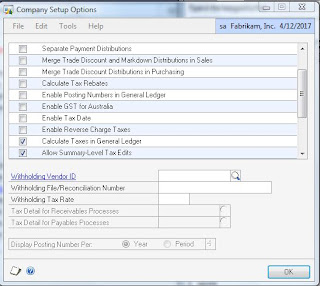
In Company Setup Options (Tools->Setup->Company->Company, Options) there is check box marked "Enable Tax Date". Simply select this and hit ok.
Now a tax date field is enabled in Sales, Purchasing and other parts of the system. Attached is a sample of what the tax date looks like on a Sales Transaction.

Originally Posted by Mark at 8/10/2009 09:00:00 AM
21 July 2011
Weekly Review: Calculate Tax in the GL
If all the other tax options in Microsoft Dynamics GP aren't enough for you there is another option that is not enabled by default. Users can calculate tax directly in a GL transaction.
To use this feature, we first have to turn it on. On the Administration navigation page, under Setup, pick Company, Company and press the options button. (Alternatively, Dynamics GP Menu->Tools->Setup->Company->Company, Options). Check the box marked "Calculate Taxes in General Ledger" then Ok your way out of there.
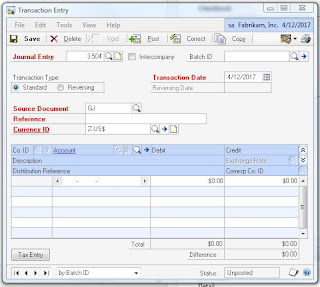
Now select Financial navigation page and pick General under Transactions, Financial. The GL entry window now has a new button marked "Tax Entry" in the lower left. Clicking this opens up the Tax Entry Window.
The tax entry window is for the whole transaction line, not just the tax. Enter a transaction line account and amount. Select the tax detail. GP will calculate the tax amount. Optionally you can add a distribution reference. Clicking process creates 2 line items in the GL, a transaction line and a corresponding tax line. You still have to add the offset line to make the transaction balance in the GL.
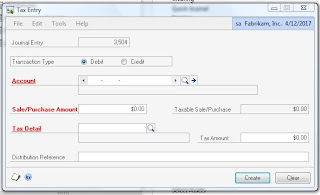
The cool part about this is that you can add tax to just one line of a journal entry and let GP do all the calculations for you.


Originally Posted by Mark at 8/03/2009 09:00:00 AM
15 April 2011
Dynamics GP Land: Lesson Learned- Importing Tax Details
Christina Phillips looks at a Lesson Learned- Importing Tax Details. It’s not quite as easy as it sounds.

11 January 2011
Validating SSN against High Group list from Social Security Administration for SQL Server
MS SQL tips has published SQL code for Validating SSN against High Group list from Social Security Administration for SQL Server.
In Dynamics GP we do lot’s of work with Social Security Numbers. Many folks are feeling a little SSN pain right now with 1099’s and W-2’s. The code from MSSQLTips can be used to validate that a SSN is in a valid range. This is usually a first step/minimal verification process. It doesn’t ensure that the SSN is valid or that it is issued to the name provided with that SSN but it does help detect data entry errors or the simplest levels of fraud.
06 January 2011
Date Effective Tax Feature for Microsoft Dynamics GP 2010
David Musgrave points us to a great new feature available for Microsoft Dynamics GP 2010, Date Effective Tax. In a nutshell, you can make Sales Tax, VAT and GST rates based on a date range. David has the free download link and I’ll add it to the Downloads section of the website.
02 December 2010
Weekly Review: Update Your Payroll Tax Tables
If you are using Dynamics GP's payroll module it's important that you update your payroll tax tables on a regular basis. This is normally a download from Microsoft and it's pretty easy to do. It's part of the year end checklist but people don't always pay attention and updates happen more frequently than annually.
The basic steps are:
- Log in as a system administrator (typically SA or Dynsa) and open Help>U.S. Payroll Updates>Check for Tax Updates.
- Select Automatic (need internet connection) or Manual (download the TX.cab file and save to GP install folder. For manual, specify the file location.
- Click process to start update
- Verify. Open Tools>Setup>System>Payroll Tax and validate the date. I believe the current update as of this post is 8/15/08.
There are lots of specific instructions at this link.
If you're not comfortable doing this or you are unsure that this is getting done, check with your partner or MS support. Be aware that the Microsoft folks like to sneak in a payroll tax update before year end as part of a service pack. I've never liked that idea but it happens pretty consistently so you might as well prepare for it. Also, if your version is too old to be supported by an enhancement plan, you won't be seeing payroll tax updates.
Just in case you are sitting there saying "This could never happen to me", this Weekly Dynamic came from an I.B.I.S. Help Desk case that illustrates that this CAN happen to you if you don't pay attention. A member of the I.B.I.S. Help Desk dropped this note to our consultants:
I’m working with a customer right now who’s used GP payroll for years and has more than one CPA in the accounting department and they have not updated their tax-rate table since 2006. As you know, state and federal tax authorities have no sense of humor when it comes to under payment.
Get out and update those tax tables today!
Originally Posted by Mark at 9/22/2008 10:47:00 AM
08 October 2010
Ship Happens, for Sales Tax Calculations in Dynamics GP
Here with a timely look at how shipping method affects sales tax calculations in Dynamics GP is Belinda, the GP CSI with Ship Happens, for Sales Tax Calculations of Course.
22 September 2010
Changing SOP Tax Rates using the Support Debugging Tool in Dynamics GP
David Musgrave provides scripts for Changing SOP Tax Rates using the Support Debugging Tool using upcoming changes to New Zealand’s tax rates.
23 July 2010
Why are taxes not being automatically calculated in Dynamics GP?
The tax settings in Dynamics GP have lots of factors that can affect the way taxes are calculated. Mohammad Daoud looks at one scenario in Why my taxes not being automatically calculated in Dynamics GP?
10 June 2010
Weekly Review: Matching Fixed Asset Costs In Multiple Books
As I work on year end tax returns for the company, one of the things we look at every year is our tax vs. book depreciation. One thing we find every year is that there are a few assets where the cost is different between tax and book. In our case, they should always be the same. It's getting better each year but we've still got a small handful this year.
This happens when we adjust the cost of an asset after the fact for additional costs that come in later. These are things like freight, tax, installation, etc. Sometimes these bills arrive 60 days after the asset is on the books. We tend to get the corporate book right and forget to make the same changes on the tax book. Also, if it's a new category for us, the Federal book relationship might not be setup (life, depreciation type, etc.). In that case, we get an error when setting up the asset but if you don't go back and fix it, you end up with a corporate book and no tax book at all.
Consequently, one of our processes at year end is to export the tax and corporate books to Excel via a Smartlists and then compare the two. We then make any adjustments to reconcile the two books. Since it's always federal that's out in our case (we're really conscientious about the corporate book) I can do this process after the year is closed and just rerun the depreciation on the federal book for any adjustments.
For this year, we've quit doing adjustments and are setting up second assets with the same asset number but a different suffix. It looks like a bunch of little assets when you glance at the FA ledger but it's simple to explain, easier to trace to source documents and our auditors have been happy with it.
So there's really two tips that come out of this:
1) Compare your cost basis for your various books on some kind of regular basis.
2) Avoid adjusting asset costs whenever you can and use a suffix or master asset ID to keep all the pieces of an asset together.
Originally Posted by Mark at 2/15/2007 11:41:00 AM 
Tags: Depreciation, Fixed Assets, Tax, Troubleshooting, Weekly Tips
07 June 2010
Australian GST update for BAS & PAYG Reporting for FY10
For everyone down under, Developing for Dynamics GP is reporting that the Australian GST update for BAS & PAYG Reporting for FY10 has been released.
25 May 2010
Jordanian “5% Vendors Service Tax” in Microsoft Dynamics GP
Mohammad Daoud looks at How to Handle Jordanian “5% Vendors Service Tax” in Microsoft Dynamics GP. The solution isn’t 100% complete yet but I love to see creative uses of existing functionality to solve new issues.
18 September 2009
Tax Details, Tax Schedules, Taxing Your Patience
Frank Hamelly takes on Tax Details and Tax Schedules in today's update. Tax your brain for a few minutes today and then you can take the weekend off.

18 August 2009
US Payroll Tax Update
Up now at the The Dynamics GP Blogster is information about the latest US Payroll Tax Update along with the steps you can take to automate payroll tax updates in Dynamics GP.
Subscribe to:
Posts (Atom)