The Account Maintenance window in Dynamics GP has four user defined fields on it. They don't get used for much, but I've got one use case that I think is pretty good.
Pick one of the UDF fields and use it to identify the employee responsible for reconciling that account. For cash accounts this is the person responsible for bank rec and reconciling to the GL. For other balance sheet accounts its the person preparing the monthly rollforward.
This makes it easy to run a COA based on the user defined field and get a reconciliation checklist for month end.
You'll want to use an integration tool like Integration Manager or SmartConnect from eOne for the initial load and for mass changes (like when an employee leaves or changes jobs).
 You, Me and Dynamics GP
The premier information site for Microsoft Dynamics GP

Showing posts with label Weekly Tips. Show all posts
Showing posts with label Weekly Tips. Show all posts
25 March 2013
04 February 2013
Weekly Dynamic: Excel 2013 Quick Analysis
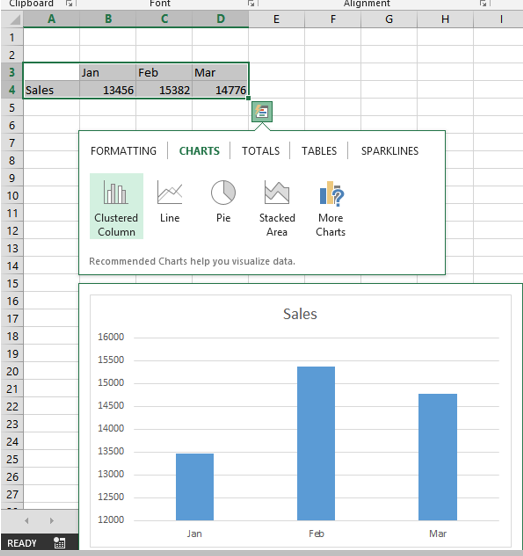
Excel 2013 offers a new, easy way to analyze data. If you have a set of information, like sales data for example, highlight the data, right click and pick Quick Analysis.
A bar pops up with all of the major analytical and formatting components including Conditional Formatting, Charts, Totals, Tables and Sparklines. Hovering over the various options let you see the result without yet committing to say, building a chart. Clicking an item applies the item to the data.

A bar pops up with all of the major analytical and formatting components including Conditional Formatting, Charts, Totals, Tables and Sparklines. Hovering over the various options let you see the result without yet committing to say, building a chart. Clicking an item applies the item to the data.


14 January 2013
Weekly Dynamic: What REALLY happens with FA Recalculate
Working with Fixed Assets, when you change a depreciation sensitive field, you get a box with three RESET choices that pops up. The choices are to reset: Life, Year or Recalculate.
Reset Life
As a reminder, resetting Life adjusts the depreciation to date for the changes and makes an adjusting entry in the current period to catch up depreciation.
Example: 3,600 asset, SL depreciation, no Salvage, 3 year life = $100 depreciation.mo. In month 8, year 1 add 1,000 to the cost, reset life. The Aug. entry is $322 for Aug. depreciation and catch up. Go forward depreciation is ~$127/month.
Reset Year
Resetting a Year adjusts the current year's depreciation for the changes and makes an adjusting entry in the current period to catch up annual depreciation.
Example: 3,600 asset, SL depreciation, no Salvage, 3 year life = $100 depreciation/mo. In month 8, year 2, add 1,000 to the cost, reset year. The Aug. Y2 entry is $322 for Aug. depreciation and catch up. Go forward depreciation is ~$155/month. Year 1 is unchanged, Year 2 catches up ~$155/mo. is depreciation going forward.
So far, so good.
Recalculate
In GP, the help describes recalculate in multiple places as:
"Recalculate Calculates a new rate of depreciation using the new cost basis data, but does not make adjusting entries for depreciation already taken. The new rate of depreciation will be used the next time the depreciation routine is completed."
This makes it sound like Net Book Value (NBV) is used to simply recalculate depreciation from the point of the change. Based on that statement, we expect GP to do this:
Example: 3,600 asset, SL depreciation, no Salvage, 3 year life = $100 depreciation/mo. In month 8, year 2 add 1,000 to the cost, recalculate. You would expect the August depreciation, and subsequent periods, to be 158.52. (3,600cost-1,900accum=1,700nbv+new 1,000=2,700newNBV / 17 remaining months).
That's not how it works. GP calculates it as 166.66/mo for the remaining periods in year 2 and 155/mo in year 3.What GP actually does with recalculate is to perform a reset year. Then is spreads the reset adjustment over the remaining periods in year. Finally it recalculates the remaining years going forward. You'll notice that the Y3 amount for recalc is the same as the amount used for reset year from the example above.
This means that if you change an asset in the last month of the year, Reset Year and Recalculate give you the same answer.
Buried in the help (Search for Recalculating Depreciation) is this comment:
"The difference between the new yearly rate and the current year-to-date depreciation amount will be allocated over the remaining time in the current fiscal year."
This is the only place that I can find where this calculation is, sort of, documented.
It's not that the Recalculate process is necessarily wrong, it's just that it doesn't work the way we expect it to based on the name and brief description provided in the help. For most folks, this isn't a problem. However, if you make a large change to an asset late in the year, you can see a dramatic change in depreciation, when you might have been expecting a very small change.
[H.T. to Marty Rubin, Sandra Dodge and Amy Walsh of I.B.I.S. for this.]
Reset Life
As a reminder, resetting Life adjusts the depreciation to date for the changes and makes an adjusting entry in the current period to catch up depreciation.
Example: 3,600 asset, SL depreciation, no Salvage, 3 year life = $100 depreciation.mo. In month 8, year 1 add 1,000 to the cost, reset life. The Aug. entry is $322 for Aug. depreciation and catch up. Go forward depreciation is ~$127/month.
Reset Year
Resetting a Year adjusts the current year's depreciation for the changes and makes an adjusting entry in the current period to catch up annual depreciation.
Example: 3,600 asset, SL depreciation, no Salvage, 3 year life = $100 depreciation/mo. In month 8, year 2, add 1,000 to the cost, reset year. The Aug. Y2 entry is $322 for Aug. depreciation and catch up. Go forward depreciation is ~$155/month. Year 1 is unchanged, Year 2 catches up ~$155/mo. is depreciation going forward.
So far, so good.
Recalculate
In GP, the help describes recalculate in multiple places as:
"Recalculate Calculates a new rate of depreciation using the new cost basis data, but does not make adjusting entries for depreciation already taken. The new rate of depreciation will be used the next time the depreciation routine is completed."
This makes it sound like Net Book Value (NBV) is used to simply recalculate depreciation from the point of the change. Based on that statement, we expect GP to do this:
Example: 3,600 asset, SL depreciation, no Salvage, 3 year life = $100 depreciation/mo. In month 8, year 2 add 1,000 to the cost, recalculate. You would expect the August depreciation, and subsequent periods, to be 158.52. (3,600cost-1,900accum=1,700nbv+new 1,000=2,700newNBV / 17 remaining months).
That's not how it works. GP calculates it as 166.66/mo for the remaining periods in year 2 and 155/mo in year 3.What GP actually does with recalculate is to perform a reset year. Then is spreads the reset adjustment over the remaining periods in year. Finally it recalculates the remaining years going forward. You'll notice that the Y3 amount for recalc is the same as the amount used for reset year from the example above.
This means that if you change an asset in the last month of the year, Reset Year and Recalculate give you the same answer.
Buried in the help (Search for Recalculating Depreciation) is this comment:
"The difference between the new yearly rate and the current year-to-date depreciation amount will be allocated over the remaining time in the current fiscal year."
This is the only place that I can find where this calculation is, sort of, documented.
It's not that the Recalculate process is necessarily wrong, it's just that it doesn't work the way we expect it to based on the name and brief description provided in the help. For most folks, this isn't a problem. However, if you make a large change to an asset late in the year, you can see a dramatic change in depreciation, when you might have been expecting a very small change.
[H.T. to Marty Rubin, Sandra Dodge and Amy Walsh of I.B.I.S. for this.]
17 December 2012
Weekly Dynamic: Issues Inactivating an Account
When you inactivate an account in Dynamics GP there is some behavior that you need to be aware of. If an inactive account is keyed into a field or selected via lookup, you won't be able to save the form. However, if a field already exists as the default on something like a customer card or a vendor card when the account is inactivated, transactions based on those accounts will continue to process.
For example, an expense account exists on a Vendor card. The account is inactivated. A user processes a payable for that vendor. The account defaults on to the transaction. The transaction WILL post properly with no errors.
The moral of the story is that after you inactivate an account you should search for that account and remove it from defaults.
For example, an expense account exists on a Vendor card. The account is inactivated. A user processes a payable for that vendor. The account defaults on to the transaction. The transaction WILL post properly with no errors.
The moral of the story is that after you inactivate an account you should search for that account and remove it from defaults.
10 December 2012
Weekly Dynamic: Excel Financial Statement Formatting Updated
I realized that last week's post probably wasn't clear enough so I'm adding more detail this week.
 Above we have a raw pivot table financial statement. Assets positive, Liabilities/Equity negative. The Balance Sheet Balances but it's ugly. To fix this I:
 We're halfway there. Next I:

The key is that we are manipulating how the items look, not how the calculations are done.

- Selected the Total Liabilities and Equity line
- Right Click | Value Field Settings | Number Format
- Pick my custom format _(* (#,##0);_(* #,##0_);_(* "-"??_);_(@_) Notice that the parentheses are switched. Positive numbers have parentheses.

- Highlighed the Asset amounts
- I clicked the Comma icon to format the assets as Accounting, no currency symbol.
- Clicked the Decrease Decimal icon twice to remove the pennies.

The key is that we are manipulating how the items look, not how the calculations are done.
19 November 2012
Weekly Dynamic: Buy One GP Book and Get One Free
I'm behind and exhausted so this week's Weekly Dynamic is a little different. From now, Monday, November 19, 2012 through Sunday, November 25, 2012 you can get Packt books buy one, get one free. All you need to do is:
It's that easy and you'll have something to read during those awkward family gatherings.
- Go to Packt's site and click the 2 for 1 Print Book Offer link on the upper right.
- Pick out a couple of great books like the Microsoft Dynamics GP 2010 Cookbook, Microsoft Dynamics GP 2010 Reporting or Microsoft Dynamics GP 2010 Reporting.
- Pay for one and get two.
It's that easy and you'll have something to read during those awkward family gatherings.
15 November 2012
Weekly Review: Remember User
The Remember User feature in Dynamics GP allows a user to retain their User
Name and Password on a workstation to avoid having to type it again. This can
cause heartburn for security administrators. As a reminder, there is a master
switch under System Preferences. (Administration > System > System
Preferences) that allows administrators to globally activate or deactivate this
feature.

11 October 2012
Weekly Review: Pick Checkbook Dates Before the ID
Belinda the GP CSI covered this as part of
a look at the Checkbook registered but I wanted to pull it out an highlight
it.
The Checkbook register can be slow returning large amounts of data. A way to deal with that is to set the data range you want FIRST then pick the Checkbook ID.
The Checkbook register can be slow returning large amounts of data. A way to deal with that is to set the data range you want FIRST then pick the Checkbook ID.

24 September 2012
Weekly Dynamic: Prevent Posting
This has come up a couple of times recently so I thought I would cover it here.
The scenario is a company wants users to have the ability to enter journal entries but only allow certain users to post to the GL. One answer is to prevent transaction and series posting and require batch approval with a password. This works but requiring an approval requires approval for ALL GL posting including posting from subledgers.
Another way is to control posting through security. Security to posting is controlled via the "Series Posting Permission" type in Security Tasks. By default GL Posting is included in the TRX_FIN_003* and ADMIN_COMPANY_11* tasks. Yeah, you didn't see the ADMIN_COMPANY_11* task coming did you? It also includes batch recovery so more users may have this than you think.

This why I recommend that you don't rely on the default tasks and roles. You really need to know what in there.
[HT to David Musgrave when I brain farted with this. I missed the ADMIN_COMPANY_11* role]
The scenario is a company wants users to have the ability to enter journal entries but only allow certain users to post to the GL. One answer is to prevent transaction and series posting and require batch approval with a password. This works but requiring an approval requires approval for ALL GL posting including posting from subledgers.
Another way is to control posting through security. Security to posting is controlled via the "Series Posting Permission" type in Security Tasks. By default GL Posting is included in the TRX_FIN_003* and ADMIN_COMPANY_11* tasks. Yeah, you didn't see the ADMIN_COMPANY_11* task coming did you? It also includes batch recovery so more users may have this than you think.

This why I recommend that you don't rely on the default tasks and roles. You really need to know what in there.
[HT to David Musgrave when I brain farted with this. I missed the ADMIN_COMPANY_11* role]
13 September 2012
Weekly Review: Undo Depreciation
It’s not unheard of for someone to make a mistake with depreciation. Maybe an
asset was put into service early for example. Well if you need to undo
depreciation for a single asset in Dynamics GP it’s very easy. Simply go to the
Routine for Depreciate One Asset, select the asset to undo depreciation for and
set a new depreciation date. So if an asset was depreciated through 2/28/11 and
you need to put it back to 1/31/11 set the depreciation date to 1/31/11. GP will
warn you that the depreciation date is earlier than the depreciated through date
and this will back out depreciation in GP. Once depreciation is processed the
subledger is updated and a reverse GL transaction is created when the GL
Transaction routine is run.

This works great for a single asset and is really easy to do. So what happens if you accidently mess up a complete depreciation run? Microsoft support has a script that can undo a depreciation posting. I’m working on getting permission to post the script. Until that happens you can contact Microsoft support and they’ll send you the script.

This works great for a single asset and is really easy to do. So what happens if you accidently mess up a complete depreciation run? Microsoft support has a script that can undo a depreciation posting. I’m working on getting permission to post the script. Until that happens you can contact Microsoft support and they’ll send you the script.
10 September 2012
Weekly Dynamic: PSTL IV Reconcile
The now free PSTL Tools (I know PSTL Tools is technically redundant, Professional Services Tools Library Tools, but that's how it is commonly referred to) includes an improved Inventory Reconcile tool that only reconciles items that need it. In most cases this is significantly faster than the base tool. How much faster?
I have an example from a client. It's not a perfect benchmark but but in their admittedly slow test environment, it took 24 hours to run the base reconcile and 5 hours to run the PSTL based reconcile. The PSTL reconcile has more volatility in how long it runs because it depends on how many items need to be reconciled.
If you're running in to long IV reconcile times, check out the PSTL based IV reconcile.
I have an example from a client. It's not a perfect benchmark but but in their admittedly slow test environment, it took 24 hours to run the base reconcile and 5 hours to run the PSTL based reconcile. The PSTL reconcile has more volatility in how long it runs because it depends on how many items need to be reconciled.
If you're running in to long IV reconcile times, check out the PSTL based IV reconcile.
06 September 2012
Weekly Review: Increase the number of password tries
Weekly Dynamic: Increase the number of password tries
By default in Dynamics GP, if you type your password wrong 3 times GP closes.
This setting can be controlled in the Dex.ini file.
The setting is:
SQLNumLoginTries = number
The default is 3, setting this to –1 allows an unlimited number of tries. This doesn’t change any SQL based lockout parameters, it simply keeps GP from closing after 3 tries.
The setting is:
SQLNumLoginTries = number
The default is 3, setting this to –1 allows an unlimited number of tries. This doesn’t change any SQL based lockout parameters, it simply keeps GP from closing after 3 tries.
27 August 2012
Weekly Dynamic: Fiscal Period Modifier Danger
Now that the Professional Services Tools Library (PSTL) is free, more people will be using them. However, the PSTL tools are powerful and this also makes them potentially dangerous.
Here is an example:
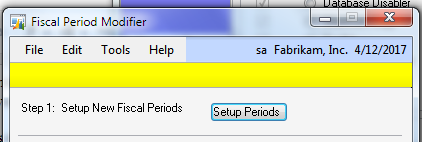
If you open PSTL tools, check Fiscal Period Modifier and click next you get some options to change the companies fiscal periods. So far, so good.
If you hit Setup Periods in Step 1 you will wipe out your current fiscal periods without warning.

Oops. Yeah. When I did this it was a pain in neck to fix the TWO company. I can't imagine doing it accidentally to a production company.
Here is an example:
If you open PSTL tools, check Fiscal Period Modifier and click next you get some options to change the companies fiscal periods. So far, so good.
If you hit Setup Periods in Step 1 you will wipe out your current fiscal periods without warning.
Oops. Yeah. When I did this it was a pain in neck to fix the TWO company. I can't imagine doing it accidentally to a production company.
23 August 2012
Weekly ReviewFixed Asset Impairment
There is no Fixed Asset Impairment feature
in Dynamics GP per se but that doesn't mean that it can't be done. The simplest
way to accomplish a full or partial Fixed Asset impairment is do a full or
partial retirement of the asset in GP and create a retirement code to identify
impairments. Since GP supports partial retirement by cost or % this will work
for assets that contain multiple quantities in GP.
For example, a $100,000 assets is impaired and is now only worth $60,000. The company can partially retire 40% of the asset (or specifically retire $40,000) and take a loss.
The nice thing about this is that it's easy to un-retire an asset. While Generally Accepted Accounting Principles (GAAP) won't allow you to un-impair an asset, International Financial Reporting Standards (IFRS) will. As the world moves toward IFRS, the ability to un-retire an asset and recapture the impairment becomes more important. It's also nice if you goof when retiring the asset.
For reporting purposes, using an impairment retirement code makes it easy to separate out impairment transactions from true retirements.
For example, a $100,000 assets is impaired and is now only worth $60,000. The company can partially retire 40% of the asset (or specifically retire $40,000) and take a loss.
The nice thing about this is that it's easy to un-retire an asset. While Generally Accepted Accounting Principles (GAAP) won't allow you to un-impair an asset, International Financial Reporting Standards (IFRS) will. As the world moves toward IFRS, the ability to un-retire an asset and recapture the impairment becomes more important. It's also nice if you goof when retiring the asset.
For reporting purposes, using an impairment retirement code makes it easy to separate out impairment transactions from true retirements.
16 August 2012
Weekly Review: Exporting to Other Systems
Recently I’ve had a number of requests for regular processes to get data out of Dynamics GP for integration to other systems. The export formats were all over the place including CSV, fixed length and pipe delimited (|).
In all cases there have been common elements to the exports, they want them to be user initiated. There have also been common elements to the solution, Microsoft Excel.
In one case I used SmartList Builder to create a SmartList with everything we needed to export, then I used a SmartList Export Solution to provide a button for the user to export the data to Excel and activate an Excel macro to format and save the file.
In another case, the client didn’t own SmartList Builder so I used a refreshable Excel report to get the data we needed an then used a macro to format the export.
With the power of Excel, getting data out to other systems becomes easy.
Originally
In all cases there have been common elements to the exports, they want them to be user initiated. There have also been common elements to the solution, Microsoft Excel.
In one case I used SmartList Builder to create a SmartList with everything we needed to export, then I used a SmartList Export Solution to provide a button for the user to export the data to Excel and activate an Excel macro to format and save the file.
In another case, the client didn’t own SmartList Builder so I used a refreshable Excel report to get the data we needed an then used a macro to format the export.
With the power of Excel, getting data out to other systems becomes easy.
Originally
09 August 2012
Weekly Review: Options for Controlling GL Posting
There are a couple of different options for controlling posting to the GL in
Dynamics GP. One option is to add a password for posting GL batches in
Tools->Setup>Posting. On the plus side, this lets anyone create a GL
transactions but only those with the password can post. The downside is that
transactions that would otherwise post through from a subledger, won’t.
Another option that is often over-looked is to control who can post to the GL with security. This will still let anyone create GL entry but only those with proper posting permission can actually post a batch or transaction.

Another option that is often over-looked is to control who can post to the GL with security. This will still let anyone create GL entry but only those with proper posting permission can actually post a batch or transaction.

06 August 2012
Weekly Dynamic: Line Numbers in SQL Server
Many of you know just enough SQL to get by. By definition that involves some trial and error to get things right. Inevitably one of your Select statements will fail and SQL will give you some hints about what's wrong including a line number.
But how do figure out what line is what? Do line numbers include spaces? There is a line number listed in the bottom right but even that is a pain to use.
In SQL Server Management Studio you can turn on line numbers with Tools | Options, expand Text Editor, Expand Transact-SQL, select General and check Line Numbers under Display.
But how do figure out what line is what? Do line numbers include spaces? There is a line number listed in the bottom right but even that is a pain to use.
In SQL Server Management Studio you can turn on line numbers with Tools | Options, expand Text Editor, Expand Transact-SQL, select General and check Line Numbers under Display.
30 July 2012
Weekly Dynamic: Purchase Price Variance Information
Last week we talked about Inventory Purchase Price Variance and a Dex.ini switch that can make it easier to trace these transactions. But there are lots of people with questions about PPV and there is still plenty of confusion about how it works. For this week's Weekly Dynamic I'm going to point you to a Microsoft Support article that will tell you more than you ever wanted to know about how PPV works in Dynamics GP including details on the REVALJEINDETAIL=TRUE Dex.ini switch.
.
.
19 July 2012
Weekly Review: PowerPivot and Multiple Cubes
Last week we looked at PowerPivot for analyzing Dynamics GP data. This week someone
asked if you can connect to multiple cubes with PowerPivot. Yes you can. For
testing I connected to the GP Financial Cube and Sales Cube and then was able to
join them in PowerPivot. These cubes were both on the same server but given the
way that PowerPivot connects that there is no reason that you couldn’t join
cubes across servers assuming that the you have the right access.
12 July 2012
Weekly Review: PowerPivot
If you are not already looking at PowerPivot from Microsoft for Business
Intelligence now is the time to start. PowerPivot is designed to support end
user/power user BI, including millions of records, from inside of Microsoft
Excel. It works great with Dynamics GP tables, views or analysis cubes as a data
source. Even better, it’s free.
PowerPivot required Microsoft Excel 2010 at a minimum and gains even more
power with SQL Server 2008 R2 and Sharepoint PerformancePoint Services. If you
need a compelling reason to start upgrading to Excel 2010, this is it.
You can find out more about PowerPivot and Dynamics GP here. The main PowerPivot page to
download from is http://powerpivot.com/.
Subscribe to:
Posts (Atom)