 You, Me and Dynamics GP

One of the newer GP features is Auto Complete. Like many other MS apps, when you start to type, you get a suggestion of possible words to fill in without having to type the whole word. But what if you mistype a word, is it there forever? Are you stuck with the word Flugelthorpe, even though you sold that division last year?
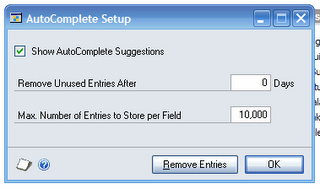
You actually have a fair amount of control over Auto Complete. The settings are found in Tools-Setup-User Preferences-Auto Complete. Here you have the power to turn Auto Complete on and off. You can set unused entries to be removed after so many days. You can limit the total number of auto entry words stored per field and you can remove all the auto entries and start over.
As for deleting an entry you don't want, when you start typing in a field, the auto entries for that field pop up. Simply find an entry you want to get rid and right click with the mouse. Pick "Remove from list" and that entry is gone.
You actually have a fair amount of control over Auto Complete. The settings are found in Tools-Setup-User Preferences-Auto Complete. Here you have the power to turn Auto Complete on and off. You can set unused entries to be removed after so many days. You can limit the total number of auto entry words stored per field and you can remove all the auto entries and start over.
As for deleting an entry you don't want, when you start typing in a field, the auto entries for that field pop up. Simply find an entry you want to get rid and right click with the mouse. Pick "Remove from list" and that entry is gone.

