You, Me and Dynamics GP
We had a great session on closing the books faster using Dynamics GP at Decisions 2010 today. Thank you to everyone involved. The MSDynamicsWorld team was fantastic. Despite my best efforts to crash the question system with volume it held up just fine and we got some great questions out of that. Jivtesh provided an review of the session on his blog at http://www.jivtesh.com/2010/05/mark-polinos-fast-close-for-dynamics-gp.html
This was a lot of fun to do and I’m looking forward to more opportunities to do virtual conferences.
One of the questions afterward led me to realize that I misspoke so I would like to correct that here.
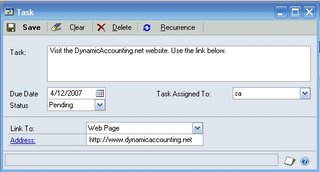
If you create and assign a Task in GP to another user, you can’t see that task later by default. However, there are some options to still make this process work fine for month end. The options are:
1) Assign the task to <Any User> and add the individual’s name that you want to complete the task to the beginning of the task description. All users can see these tasks and GP records who actually competed the task and when.
2) Assign the task to a specific user and use SmartList Builder, Excel Report Builder, SSRS, Crystal Reports, Excel or other reporting tool to build a report from the Dynamics..SY01403 table in Dynamics GP. This table holds all the tasks by user making it easy to build into a report.
3) Assign the task to a specific user and create a custom report using Report Writer in Dynamics GP pointed to the syUserTasks (Dynamics..sy01403). The advantage to this method is that no additional products are necessary and the custom report is easy to export and import. The down side of course is that you have to use Report Writer.