
 You, Me and Dynamics GP
The premier information site for Microsoft Dynamics GP

Showing posts with label Custom Links. Show all posts
Showing posts with label Custom Links. Show all posts
18 June 2012
05 April 2012
Weekly Review: More Custom Links
We’ve looked at Custom Links before but it’s time to a few more tips. The field on the Custom Link window is name Internet Address but in reality this doesn’t have to be a website. It can be a link to a local file, an application, an email address (using mailto://), etc.
For example this could be used to launch a banking application from a link to a checkbook. In the example below, the custom link will launch a remote desktop session.
![[image[2].png]](http://lh5.ggpht.com/_BFj0p8giN1k/S8uvmkvvsAI/AAAAAAAAAhc/-kGiU7mPD8U/s1600/image%5B2%5D.png)
Originally Posted by Mark Polino at 4/19/2010 09:00:00 AM


01 February 2011
Dynamics GP Custom Links - Shipment Tracking
Michael Johnson reminds us how cool the Custom Links feature can be in Dynamics GP Custom Links - Shipment Tracking. It doesn’t matter how much you cover this stuff, people only go looking for it at the point of need.
19 April 2010
Weekly Dynamic: More Custom Links
We’ve looked at Custom Links before but it’s time to a few more tips. The field on the Custom Link window is name Internet Address but in reality this doesn’t have to be a website. It can be a link to a local file, an application, an email address (using mailto://), etc.
For example this could be used to launch a banking application from a link to a checkbook. In the example below, the custom link will launch a remote desktop session.

09 April 2010
Dynamics GP 10 – Custom Links
My talented colleague Amy Walsh is back with a look at Custom Links at the DynamicsCare website.
06 July 2006
Weekly Dynamic:Custom Links
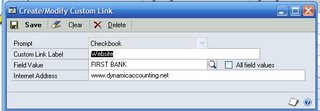
Custom Links were first available in v8 for GP and continue on in v9. A custom link let you associate a link with an item in GP. For example, you can associate a bank website with a checking account. Then, when you click on the hyperlink to the account, you get a choice to go to the external link or the account in GP.
Custom links are setup in Tools-Setup-Company-Custom Link.
This works well for things like bank websites, currency sites, vendor sites, etc. It's more universal than a shortcut and easier to make available to everyone.
Custom links are setup in Tools-Setup-Company-Custom Link.
- Click New to add a link
- Select the item to add a link to. For demo purposes, pick checkbooks
- Give the link a description like "Website"
- Pick an associated item, in this case a bank account
- Enter the link. You don't have to enter Http://. You can just enter the address like www. dynamicaccounting.net.
This works well for things like bank websites, currency sites, vendor sites, etc. It's more universal than a shortcut and easier to make available to everyone.
Subscribe to:
Posts (Atom)