In his latest Accidental Administrator column, John Lowther looks at the much underused User Preferences in Dynamics GP.
You, Me and Dynamics GP
The premier information site for Microsoft Dynamics GP
Showing posts with label User Preferences. Show all posts
04 April 2012
02 August 2006
Weekly Dynamic: Auto Complete
One of the newer GP features is Auto Complete. Like many other MS apps, when you start to type, you get a suggestion of possible words to fill in without having to type the whole word. But what if you mistype a word, is it there forever? Are you stuck with the word Flugelthorpe, even though you sold that division last year?
You actually have a fair amount of control over Auto Complete. The settings are found in Tools-Setup-User Preferences-Auto Complete. Here you have the power to turn Auto Complete on and off. You can set unused entries to be removed after so many days. You can limit the total number of auto entry words stored per field and you can remove all the auto entries and start over.
As for deleting an entry you don't want, when you start typing in a field, the auto entries for that field pop up. Simply find an entry you want to get rid and right click with the mouse. Pick "Remove from list" and that entry is gone.
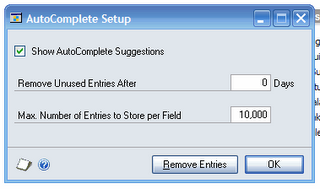
You actually have a fair amount of control over Auto Complete. The settings are found in Tools-Setup-User Preferences-Auto Complete. Here you have the power to turn Auto Complete on and off. You can set unused entries to be removed after so many days. You can limit the total number of auto entry words stored per field and you can remove all the auto entries and start over.
As for deleting an entry you don't want, when you start typing in a field, the auto entries for that field pop up. Simply find an entry you want to get rid and right click with the mouse. Pick "Remove from list" and that entry is gone.
26 July 2006
Tune Up Tools
Alan R. Earls has a nice article titled Tune Up Tools on CustomerSource, covering some under utilized features of Dynamics GP.
I have to take issue with one item though. In GP, you CAN setup data entry to use the Enter button to move between fields. DON'T. RESIST THE URGE!
Why?
I have to take issue with one item though. In GP, you CAN setup data entry to use the Enter button to move between fields. DON'T. RESIST THE URGE!
Why?
- It's a Windows world, using Enter in GP only prolongs your inevitable move to the Tab key.
- It trashes productivity. You can't use Enter any more to save and move to the next record so you'll end up using the mouse a lot more. Every productivity expert will tell you that the keyboard is faster than the mouse. Let's face, if you want to use the Enter key to move between fields, you're coming off of a mainframe or mini-computer system. This means you're not using mouse in those systems at all. Using the mouse more in GP won't make you more productive.
- You get inconsistent behavior. Sometimes Enter works like a tab, sometimes it doesn't. Simple example, open Cards-Sales-Customer. The Enter key will move you around the form and won't activate anything until you get to Write Letters. If you use the arrow key to move down to a selection and press enter, suddenly you're ready to write letters. Tab however, has no effect. This means that there will be times when you activate something with the Enter key that you didn't mean to and you'll always be wondering if Enter will do what you want.
Tags:
Enter Key,
Support,
Troubleshooting,
User Preferences
28 September 2005
Weekly Feature: Seeing Red
I'm swamped this week so I'm falling back on an oldie but a goodie. A surprising number of long time users still don't use this so I'll cover here. What is it? Show required fields on a form in RED.
In Great Plains select Tools>Setup>User Preferences or in some versions, Setup>User Preferences, or pick the User Preferences Icon from the shortcut bar.
Select Display. On the right under Required Fields, set Font Color to Red and Font Style to Bold. Click OK and you're done.
Required fields throughout the system now show as Bold Red.
In Great Plains select Tools>Setup>User Preferences or in some versions, Setup>User Preferences, or pick the User Preferences Icon from the shortcut bar.
Select Display. On the right under Required Fields, set Font Color to Red and Font Style to Bold. Click OK and you're done.
Required fields throughout the system now show as Bold Red.
Subscribe to:
Posts (Atom)