 You, Me and Dynamics GP
The premier information site for Microsoft Dynamics GP

Showing posts with label MS Office. Show all posts
Showing posts with label MS Office. Show all posts
27 August 2012
Feature of the Day: 64-Bit Microsoft Office Compatibility - Inside Microsoft Dynamics GP - Site Home - MSDN Blogs
A new Feature of the Day looks at 64-Bit Microsoft Office Compatibility. I'm definitely looking forward to this one.


14 May 2012
20 January 2010
Learn Office the easy way
There is a new tool out for MS Office 2007 and 2010 called Ribbon Hero. Ribbon Hero is a game that runs in each of the Office applications and pits the user's knowledge of features against the machine. It's designed to help expose the features in the ribbon. I have to say that after going through the Excel version I learned some faster ways to accomplish things and found a few things I didn't know existed, like wire frame charts. This is a fast, easy, painless way to get better with Microsoft Office. Since Office and Dynamics GP keep getting more and more connection points, a improved knowledge of Office leads to a better use of Dynamics GP.

30 October 2008
Word Mail Merge and Macros
Developing for Dynamics GP has info on using Word's Mail Merge Feature and GP's Macro feature to import data when other options (Integration Manager, eConnect, Table Import, etc) are either not available or not a reasonable alternative. David Musgrave does a nice job with the coverage of this topic and if that's not enough, it's been covered extensively in the GP Newsgroup and elsewhere so there are lots of resources to help with this.
As Dave points out, this works well when the data is consistent and the macro doesn't have to make choices based on the data.
As Dave points out, this works well when the data is consistent and the macro doesn't have to make choices based on the data.
02 October 2008
Letter Writing with Microsoft Outlook and Dynamics GP
Mariano Gomez takes on tighter integration with Dynamcis GP 10 and Outlook. Mariano's technique adds a Send and Email option to the Customer or Vendor Maintenance records. This works well if you just need to contact a customer.
28 March 2008
It's Mr. Excel to You!
If you're an Excel junkie (or just want to be one) take a look at Mr. Excel. Mr. Excel has a daily videocast on Excel topics and the topics seem to run the table from simple to complex. Hint, there's more than 600 videos so far. I don't have a nice clean transition about how this affects Dynamics GP but lets face it an awful lot of GP user are heavy Excel users and the connections between the two are only getting stronger.
02 March 2008
EZ-GP Video
The folks at Data Presentation Products have a nice video out showing how their EZ-GP product can speed up the export of Smartlist data to Excel.
I hope this trend of short video continues. I think it adds a nice compliment to static printed and web material. Check out EZ-GP, especially if you have large Smarlists that you need to export.
I hope this trend of short video continues. I think it adds a nice compliment to static printed and web material. Check out EZ-GP, especially if you have large Smarlists that you need to export.
06 January 2008
Xcelerator for GP and YouTube
Data Presentation Products makes an Xcelerator for Smartlist product for GP that I've highlighted here before. Their main focus is improving your Excel experience and I know that we have a few Excel junkies in the audience.
Well, they're moving their video demos to YouTube. The GP Smarlist demo isn't on YouTube, yet, it's still on their main demo site but hopefully it will be there soon.
Take a look, you may see something that helps you after you get your data out of GP.
Well, they're moving their video demos to YouTube. The GP Smarlist demo isn't on YouTube, yet, it's still on their main demo site but hopefully it will be there soon.
Take a look, you may see something that helps you after you get your data out of GP.
30 August 2007
GP 10 Reporting and Excel - The Future is Now
Tom Brookes of the Microsoft Dynamics GP UK blog has a great look at the new Office Data Connections (ODC) in GP and how they integrate with Excel.
Here's a little glimpse:
"Let me put in context. In the old days we would create a SmartList, download it to Excel, muck around with the data maybe add a couple of calculations to the data, reformat it and then save it to a folder share and email it to someone who doesn't have access to Dynamics GP...
...Now in the new world the process now would involve giving the non GP user access to the Excel report. This means that they can then run it whenever they want and see the latest data removing the reliance from Dynamics GP users to produce reports for other people. "
This looks like a nice combination of the ideas behind smart tags (which were a pain to implement) and the Excel Query functionality (which required table knowledge) with most of the headaches removed. Read the whole thing for a peek under the hood of how it works.

Here's a little glimpse:
"Let me put in context. In the old days we would create a SmartList, download it to Excel, muck around with the data maybe add a couple of calculations to the data, reformat it and then save it to a folder share and email it to someone who doesn't have access to Dynamics GP...
...Now in the new world the process now would involve giving the non GP user access to the Excel report. This means that they can then run it whenever they want and see the latest data removing the reliance from Dynamics GP users to produce reports for other people. "
This looks like a nice combination of the ideas behind smart tags (which were a pain to implement) and the Excel Query functionality (which required table knowledge) with most of the headaches removed. Read the whole thing for a peek under the hood of how it works.

25 October 2005
Weekly Feature:Excel Subtotals
I'm going to digress slightly with this week's feature. This is actually an Excel feature, not a Great Plains feature per se but it has huge implications for Smartlist exports, so I'm going to cover it as a feature.
If you've never used Subtotals in Excel before, you need to know that I get more jaw dropping looks from people over this feature than for anything else I've shown them. Often I get slapped as well because they've just finished some long, tedious subtotalling by hand.
So what do subtotals do? When you export Smartlists that are detail lines such as GL transaction, Purchase Transaction Lines Lines, Sales Line Items, Inventory Transactions, etc., you get the details of transaction but often you also need the subtotal of all those lines to trace back to the transaction total. This is where Excel subtotals come in. Figuring out where all those transactions break and subtotaling with a formula is really slow.
I'll use Purchase Transaction Lines in this example and start by exporting a large number of lines (1000) to Excel. Sort the list by PO Number either in Smartlist before exporting or in Excel after the export. THIS IS AN IMPORTANT STEP. You would actually sort by whatever you want to subtotal on. It could be open vs. closed PO's, date created, etc. We'll use PO Number for our example.
In Excel select Data->Subtotals. This pops up a box that you follow through like a wizard.
At each change in: Check PO Number
Use Function: Select SUM
Add Subtotal to: Check only Extended Cost
Click OK
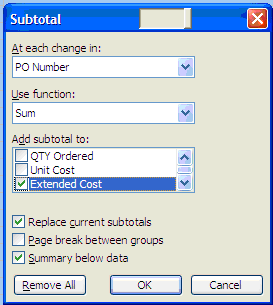
In English: "At each change in PO number, sum the extended cost. Replace any current subtotals and put the summary below the data."
Your PO's now have the extended cost for each line subtotaled by PO number. There are little numbers 1,2 & 3 to the left of cell A1. Clicking on these expands and contracts the amount of detail you see. You can see a grand total, a subtotal by PO or the full detail.
Depending on how you sort and filter the Smartlist data you can get different results, for example separating open and closed PO lines from the PO. If you uncheck the Replace Current Subtotals box you can actually create nested heirarchies of subtotals. But that hurts my brain.
Excel's subtotals overcome one of the few shortcomings of Smartlists. You can't total stuff in Smartlists, but now you know more about totalling than you ever wanted.
If you've never used Subtotals in Excel before, you need to know that I get more jaw dropping looks from people over this feature than for anything else I've shown them. Often I get slapped as well because they've just finished some long, tedious subtotalling by hand.
So what do subtotals do? When you export Smartlists that are detail lines such as GL transaction, Purchase Transaction Lines Lines, Sales Line Items, Inventory Transactions, etc., you get the details of transaction but often you also need the subtotal of all those lines to trace back to the transaction total. This is where Excel subtotals come in. Figuring out where all those transactions break and subtotaling with a formula is really slow.
I'll use Purchase Transaction Lines in this example and start by exporting a large number of lines (1000) to Excel. Sort the list by PO Number either in Smartlist before exporting or in Excel after the export. THIS IS AN IMPORTANT STEP. You would actually sort by whatever you want to subtotal on. It could be open vs. closed PO's, date created, etc. We'll use PO Number for our example.
In Excel select Data->Subtotals. This pops up a box that you follow through like a wizard.
At each change in: Check PO Number
Use Function: Select SUM
Add Subtotal to: Check only Extended Cost
Click OK

In English: "At each change in PO number, sum the extended cost. Replace any current subtotals and put the summary below the data."
Your PO's now have the extended cost for each line subtotaled by PO number. There are little numbers 1,2 & 3 to the left of cell A1. Clicking on these expands and contracts the amount of detail you see. You can see a grand total, a subtotal by PO or the full detail.
Depending on how you sort and filter the Smartlist data you can get different results, for example separating open and closed PO lines from the PO. If you uncheck the Replace Current Subtotals box you can actually create nested heirarchies of subtotals. But that hurts my brain.
Excel's subtotals overcome one of the few shortcomings of Smartlists. You can't total stuff in Smartlists, but now you know more about totalling than you ever wanted.
06 October 2005
Weekly Feature: Excel-ing with Smartlists
If you've used Great Plains for 5 minutes you've figured out how to export a Smartlist to Excel. Great feature, simple interface, push the button. But... there is another dimension to Smartlists and Excel that we're going to explore.
With a Smartlist open, pick Extras->Smartlist->Export Solutions to see what I'm talking about. Smartlist allows you to export to the SAME Excel spreadsheet time after time. You can also specify Excel macros to run before and/or after the export for formatting, analysis, etc.
Maybe you export data to Excel every month for graphing, analysis, etc. This feature lets you automate the process.
So how does it work?
1) First, save your smartlist as a favorite.
2) With a Smartlist open, pick Extras->Smartlist->Export Solutions.
3) Give the Smartlist a name, add your Excel file name and your before and/or after macro names. In "Visibility" set who can see this favorite and select Excel for the application.
4) In the tree view at the bottom, select your favorite and check the box
5) Click save.
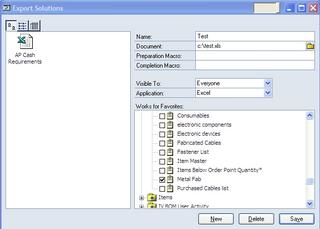
Close the window. Close and Reopen Smartlists.
Pick the favorite you just saved and click Excel. You'll see two choices now, the saved export solution you just created and Quick Export. Quick Export is the normal "send to Excel with a new sheet" functionality you're used to. If you click your new favorite, your spreadsheet opens, your before macro runs, the data imports and your after macro runs.
This great for when you want to send data to same Excel file on a monthly basis. You can use a macro to move to the bottom or create a new tab, import the data, and reset a graph with an after macro.
Ideally, you would do a normal export first. Play with your Excel file and macros a couple times to get them where you want, and then setup the export solution. We'll explore some other Excel /Great Plains links coming up.
With a Smartlist open, pick Extras->Smartlist->Export Solutions to see what I'm talking about. Smartlist allows you to export to the SAME Excel spreadsheet time after time. You can also specify Excel macros to run before and/or after the export for formatting, analysis, etc.
Maybe you export data to Excel every month for graphing, analysis, etc. This feature lets you automate the process.
So how does it work?
1) First, save your smartlist as a favorite.
2) With a Smartlist open, pick Extras->Smartlist->Export Solutions.
3) Give the Smartlist a name, add your Excel file name and your before and/or after macro names. In "Visibility" set who can see this favorite and select Excel for the application.
4) In the tree view at the bottom, select your favorite and check the box
5) Click save.
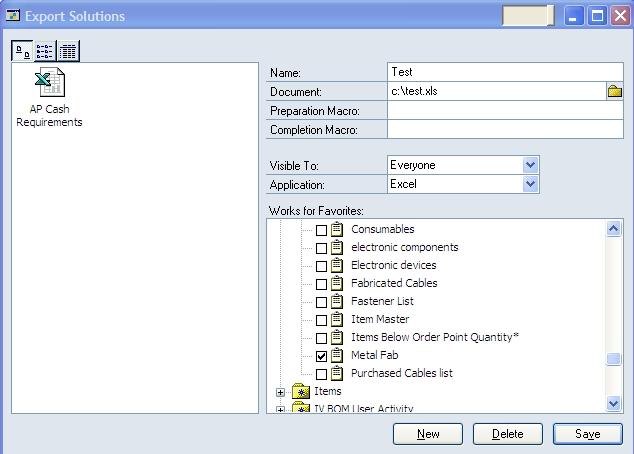
Close the window. Close and Reopen Smartlists.
Pick the favorite you just saved and click Excel. You'll see two choices now, the saved export solution you just created and Quick Export. Quick Export is the normal "send to Excel with a new sheet" functionality you're used to. If you click your new favorite, your spreadsheet opens, your before macro runs, the data imports and your after macro runs.
This great for when you want to send data to same Excel file on a monthly basis. You can use a macro to move to the bottom or create a new tab, import the data, and reset a graph with an after macro.
Ideally, you would do a normal export first. Play with your Excel file and macros a couple times to get them where you want, and then setup the export solution. We'll explore some other Excel /Great Plains links coming up.
28 September 2005
Office 2003 SP2 Now Available
MS Office 2003 Service Pack 2 is now available. You can get it here. Why should you care? If you are an Office 2003 user with GP, there is a host of Excel and Sharepoint fixes which may make your life easier. Not to mention new anti-phishing features in Outlook. You can also get it at MS Office Update.
No word on the GP side if there any issues with Office SP2. I'll be installing it today and I'll let you know if I see any.
No word on the GP side if there any issues with Office SP2. I'll be installing it today and I'll let you know if I see any.
Subscribe to:
Posts (Atom)