 You, Me and Dynamics GP
The premier information site for Microsoft Dynamics GP

Showing posts with label Smartlist Builder. Show all posts
Showing posts with label Smartlist Builder. Show all posts
22 October 2012
Adding a “Go To” with SmartList Builder | Dynamics GP Insights
Christina Phillips shows off Adding a “Go To” with SmartList Builder


16 October 2012
10 July 2012
19 April 2012
26 March 2012
Top SmartList Builder Question at Convergence - Microsoft Dynamics GP Support Blog
Checkout Multi-Company SmartLists at Top SmartList Builder Question at Convergence

27 February 2012
Calculated Fields in Extender and the Builders - Microsoft Dynamics GP Support Blog
Nicole Albertson from the Microsoft Dynamics GP Support and Services blog looks at Calculated Fields in Extender and the Builders
17 January 2012
Quick Tip: SmartList Builder & Account Numbers - Blog - Kuntz Consulting
Kuntz Consulting has a great SmartList builder tip on SmartList Builder & Account Numbers

03 November 2011
Weekly Dynamic: Complex Web GoTos in SmartLists
Developing for Dynamics GP has covered passing complex parameters through shortcuts in the past. Similarly, I recently had a chance to pass a complex parameter to a web page through a GoTo on a SmartList. I thought I would spend a few minutes showing how this works.
The basic scenario was simple. A client needed to pass an invoice number as a parameter to an internal web page connected to an imaging system. Clicking the GoTo would open a web browser, pass a URL with the embedded parameter and an invoice image would open.
When using SmartList Builder there is a button to create a GoTo. Clicking the button opens the GoTo window. The Plus (+) button creates a new GoTo and one option is to open a webpage. So far so good.

Clicking the Open Webpage option lets you set a description to appear and a enter a URL. To just open a web page, that's all that needs to be setup. Clicking the plus sign allows the assignment of parameters. This useful for sending search strings to say Bing or Google and in our example, an imaging website.

The parameter gets a name that is actually passed as part of the parameter string. The parameter can only be 30 characters long. In addition, you select a table and field from the SmartList to pass. Multiple parameters can be added by clicking plus.
For the first parameter, GP Actually passes the website, a question mark (?) to indicate a parameter, the parameter name, an equal sign and the field value from the select field in the SmartList.
For example, a Bing search for Dynamics GP would look like this:
URL: http://www.bing.com/search
parameter: q
SmartList field value: Dynamics GP
The GoTo would put it together like this: http://www.bing.com/search?q=Dynamics GP
For basic queries this works great, but what if the parameter is more than 30 characters?
What if the parameter you're passing needs to be in the middle of a parameter string?
Don't worry, there's a way around this.
The secret is to create a calculation and pass the calculated result to the GoTo. My client had a very long parameter string with the invoice number at the end so here is what I did:
- I grabbed the entire parameter string AFTER the first equal sign (=). I would need that for the parameter later.
- Created a calculation in SmartList builder using the calculation button and pasted the parameter string in as a calculation with single quotes around it for SQL.
- Then I added a plus sign (+) and selected the invoice number from the available fields at the right. This gave me almost the entire parameter string. The calculation looked like this:

- Finally I created a new GoTo with the parameter information before the equal sign as my parameter name and selected the calculated field instead of the invoice number as the field to append to the end.


Everything worked perfectly and now selecting a GoTo from that SmartList reports fires up a web browser and displays the related image.
As we worked with this for a few days we learned a couple of things. The invoice number passed through the calculation could also be passed as a second parameter instead of being embedded in the calculation. The only real benefit is clarity.
Secondly, the SmartList field being passed as a parameter needs to be included as a key field in table. We missed this the first time. The SmartList was built off a single view and didn't need a key field except to satisfy SmartList Builder so Batch Number had been randomly picked as the key field.
Consequently, until we added Invoice Number as a key field, SmartList Builder was passing as parameter an invoice from the batch that included that invoice number, but not necessarily the right invoice number. It was occasionally right and often wrong. Including Invoice Number as a key field in the SmartList solved this problem.

Originally posted by Mark at 11/23/2009 09:00:00 AM
02 November 2011

13 September 2011
How To Use All Account User Defined Fields On SmartLists – Step By Step | azurecurve
Ian Grieve shows us a step by step How To Use All Account User Defined Fields On SmartLists

21 July 2011
The Dynamics GP Blogster: SmartList Builder and creating Calculated Fields with Extender data
I missed this post of Mariano’s looking at SmartList Builder and creating Calculated Fields with Extender data
Oops. Well, at least now you know that I’m human and not a bot.
06 July 2011
Using SmartList Builder With A Linked Server - It Can Be Done! | Aaron Berquist - High Dynamic Range
Aaron Berquist demonstrates Using SmartList Builder With A Linked Server - It Can Be Done!
This is actually very cool and worth a look.

03 March 2011
Building Form GoTo’s for Receivables & Customers « Dynamics GP Builders & Reporting
Continuing a trend, Devon Southall looks at Building Form GoTo’s for Receivables & Customers

02 March 2011
Adding Tasks for a Open Form Go To in the Builders « Dynamics GP Builders & Reporting
Devon Southall is back looking at Adding Tasks for a Open Form Go To in the Builders

01 March 2011

20 December 2010
Weekly Dynamic: Identify SLB SmartLists
It’s often helpful to identify a SmartList Builder (SLB) SmartList to separate it from the defaults. That way if a change needs to be made you can readily identify the item as a SmartList Builder report to change or duplicate and change.
A simple way to do this is to include and identifier like [SLB] at the end of the SmartList Name. You could also put an identifier at the beginning if you want to group all SLB reports together.

16 December 2010
01 December 2010
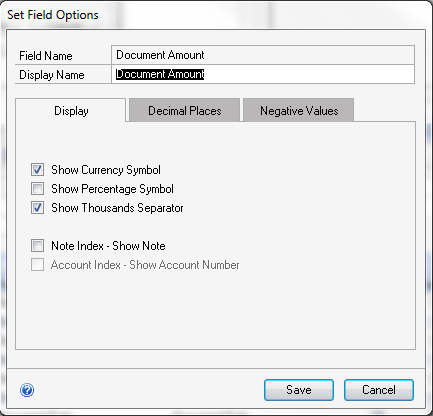
Make a GREAT list – checklist for Field Formatting (common things to check)
Devon Southall gives us her criteria to Make a GREAT list – checklist for Field Formatting (common things to check) when building a SmartList.
02 November 2010
18 October 2010
Copy a basic SmartList from GP into SmartList Builder
Devon Southall does what was once thought impossible by Copying a basic SmartList from GP into SmartList Builder.
Subscribe to:
Posts (Atom)